The Silent Error That Kills Sales
A customer tries to pay via STK Push on your site. The prompt does not appear. The checkout screen just spins, or shows a generic red "Transaction failed. Please try again." The customer is confused. Did their M-Pesa get debited? Is the site broken? They leave, angry and uncertain.
This silent failure is one of the most common yet under-addressed UX flaws in Kenyan e-commerce. Most STK integrations do not communicate the reason for failure or guide the customer to a solution.
Generic Error
- "Transaction failed. Try again."
- No explanation of what went wrong
- Customer fears they were debited
- No alternative payment offered
- Sale is lost, support ticket created
Specific & Helpful
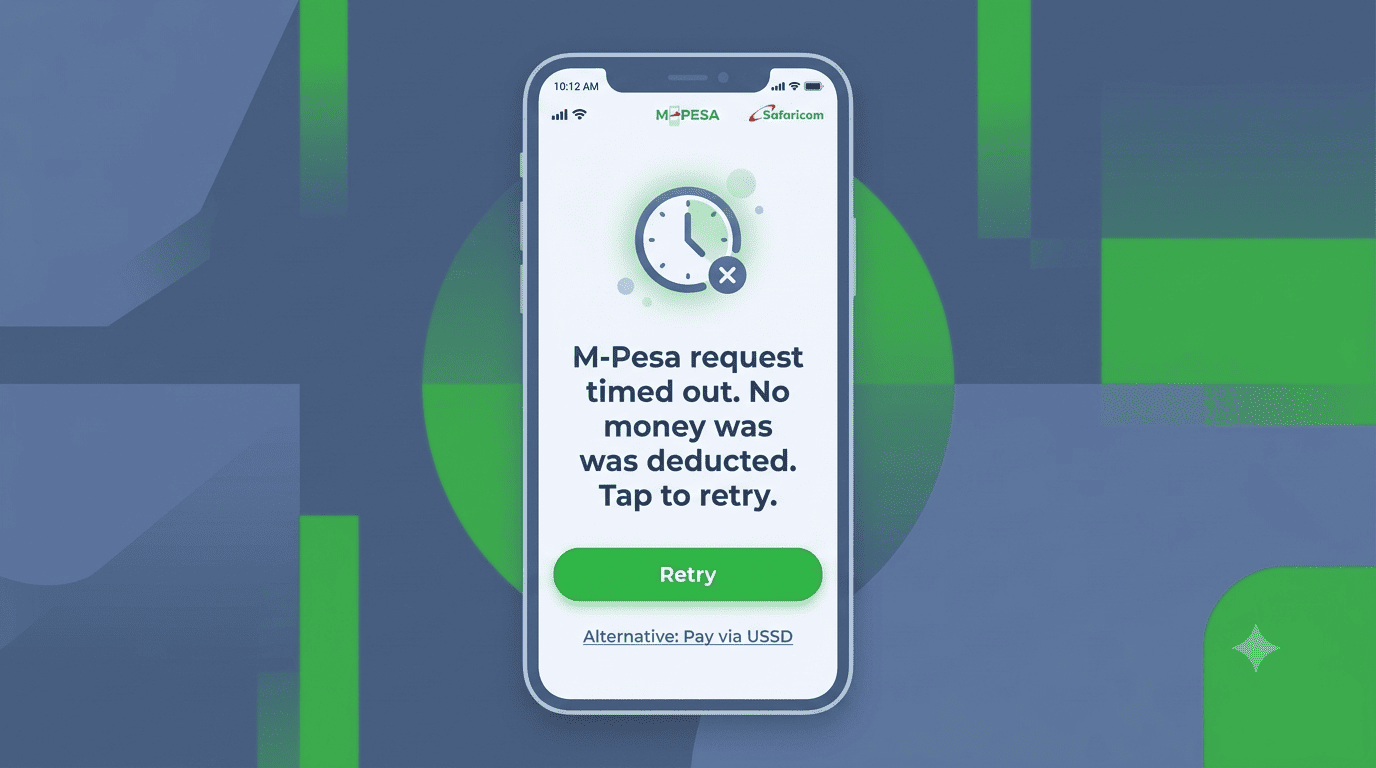
- "Network timed out. No money deducted."
- Clear guidance on what to do next
- One-click retry or USSD fallback
- Customer feels supported
- Sale is recovered
The Stonehenge Digital STK communication protocol
Four UX interventions that turn a frustrating failure into a clear, recoverable pause.
The "Prompt Sent" confirmation
Immediately after the STK request is sent, display a clear message. This tells the customer what to expect and what to do if the prompt seems absent.
The message "M-Pesa prompt sent to your phone. Please enter your PIN to complete payment. If you don't see it, check your M-Pesa messages or SIM toolkit."The specific error messages
Instead of a generic "Error," provide specific, helpful messages that tell the customer exactly what happened and what to do next.
The "Retry with Guidance" button
After a failure, show a large button to try again. Below it, add a small note that anticipates a common issue.
The button text "Didn't receive prompt? Tap to resend." Below it: "We'll try sending the prompt again. If it still fails, try switching from WiFi to mobile data."The alternative payment fallback
If the STK fails twice, dynamically display an alternative. Do not wait for the customer to find it themselves.
The fallback text "STK push is having trouble. You can also pay via USSD (works on any phone, no data needed) or use our Till Number below. Please include your order number as reference."The customer service impact
A business we worked with implemented these specific messages. The shift in customer behavior and support load was immediate.
Support Tickets Dropped, Sales Recovered
Their customer support tickets related to "payment failed" dropped by 45%. Customers could self-serve, and the friendly, informative tone reduced anger and increased retry rates.
A failed payment does not have to be a lost sale. It is an opportunity to show your brand's customer service and technical competence.
Use clear confirmation, specific errors, and easy fallbacks to turn a moment of frustration into a completed transaction.
Ready to fix your checkout errors?
Stonehenge Digital builds e-commerce platforms with advanced STK monitoring, dynamic error messaging, and one-click fallback options, so you never lose a sale to a silent failure.
Fix My STK Error Messages →Interested in E-Commerce Website with M-Pesa?
Let's build this for your business
Sell to any Kenyan with a phone. Full online shop with Safaricom STK Push payment — no card needed.